![[PukiWiki]](https://www.masatom.in/pukiwiki/image/kinosite.png "[PukiWiki]")
|
次はUI部のビジネスロジックを作成します。プラグインクラスで、先ほど作ったcoreプラグイン機能のGUIラッパを作成します。具体的には、
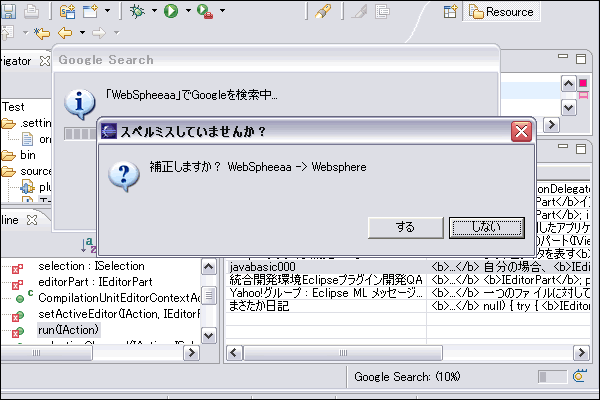
などを作成します。ひとつめのメソッドgetSplellingSuggestion?は後に作成するorg.eclipse.core.runtime.jobs.Jobのサブクラスのrun(IProgressMonitor? monitor)メソッドから起動されます。二つめのスレッドは、そのメソッド内でダイアログを出すために呼ばれるスレッドです。 スクリーンショット †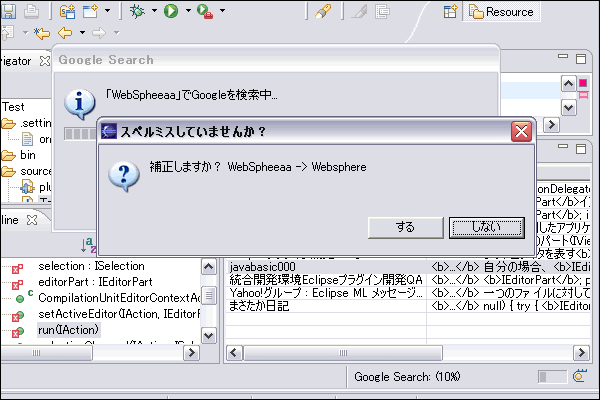 プラグインクラス nu.mine.kino.plugin.google.ui.GooglePlugin のソースコード †public class GooglePlugin extends AbstractUIPlugin {
いろいろ省略
/**
* 引数の文字列でGoogleにリクエストし、単語の誤りをチェックします。
* 候補があった場合、候補が返ります。候補がなかった場合、入力した単語が返ります。
*
* @param text
* @param monitor
* @return
*/
public String getSplellingSuggestion(final String text,
IProgressMonitor monitor) {
String searchText;
String suggestionText = null;
// 設定画面より、Google Keyを取得
String myGoogleKey = GooglePlugin.getDefault().getPreferenceStore()
               .getString(PreferenceConstants.GOOGLE_KEY);
// Googleにリクエスト
suggestionText = GoogleCorePlugin.getDefault().getSplellingSuggestion(
myGoogleKey, text);
// nullでない場合は候補が返ってきた
if (suggestionText != null) {
CheckThread dialog = new CheckThread(text, suggestionText);
// ユーザに変更するかを選ばせる
checkSyncExec(dialog);
// dialogより結果を取得する
if (dialog.isOK()) {
// 変更する
searchText = suggestionText;
logger.debug("スペルミスの候補に変更します");
monitor.setTaskName("「" + suggestionText
+ "」に変更してGoogleを検索中...");
} else {
// 変更しない
searchText = text;
logger.debug("スペルミスの候補に変更しません(ユーザがキャンセル)");
}
} else {
logger.debug("スペルミスの候補がありませんでした");
// 例外が発生した場合もこのケース
searchText = text;
}
return searchText;
}
/**
* プログレスバー上でダイアログを出す際に使用するスレッドです。
*
* @author Masatomi KINO
* @see GoogleResultView#checkSyncExec(Runnable)
*/
private class CheckThread implements Runnable {
/**
* Logger for this class
*/
private final Logger logger = Logger.getLogger(CheckThread.class);
// ダイアログでユーザがどちらを押したかを判定するフラグ
// 0 : する
// 1 : しない
private int returnCode;
private String text;
private String suggestionText;
/**
* @param text
* @param suggestionText
*/
public CheckThread(String text, String suggestionText) {
this.text = text;
this.suggestionText = suggestionText;
}
public void run() {
StringBuffer message = new StringBuffer();
message.append("補正しますか? ");
message.append(text);
message.append(" -> ");
message.append(suggestionText);
IWorkbench workbench = PlatformUI.getWorkbench();
IWorkbenchWindow window = workbench.getActiveWorkbenchWindow();
MessageDialog dialog = new MessageDialog(window.getShell(),
"スペルミスしていませんか?", null, new String(message),
MessageDialog.QUESTION, new String[] { "する", "しない" }, 1);
returnCode = dialog.open();
}
/**
* ダイアログでユーザがどちらを押したかを判定します。
*
* @return 0 : する 1 : しない
*/
public boolean isOK() {
if (returnCode == 0) {
return true;
}
return false;
}
}
private boolean checkSyncExec(Runnable thread) {
if (!Display.getDefault().isDisposed()) {
Display.getDefault().syncExec(thread);
return true;
} else {
return false;
}
}
}
設定を保持するIPreferenceStore?について †さて、うえのソースコード上で String myGoogleKey = GooglePlugin.getDefault().getPreferenceStore()
.getString(PreferenceConstants.GOOGLE_KEY);
とやってGoogleのキー値を設定画面から取得していますが、これについては設定を保持するIPreferenceStoreを使うで説明しています。 次は上のビジネスロジックを利用する、検索結果一覧を表示するビューを作成します。 この記事は 現在のアクセス:9822 |


 thread.png